AI-MARKDONE / MANUAL
Settings reference
Review every current AI-MarkDone setting, its default, range, effect, and requirements, with separate guidance for global preferences, Reader settings, and backups.
On this page
Where to open it
Click the AI-MarkDone brand / settings button at the bottom right of ChatGPT, then open Settings. Browse the eight categories below or search by setting name. Reader text size, window behavior, and annotation copy format are in the settings button at the top right of Reader, covered at the end of this page.
Defaults describe a new configuration; upgrades preserve existing preferences. Most changes apply after saving. If an older open page shows an extension update notice, reload ChatGPT first. Some controls are temporarily read-only while settings load or when the page and extension versions are incompatible.
Appearance & layout
| Setting | Default | Options or range | Effect and requirements |
|---|---|---|---|
| Theme | Follow page | Follow page, Light, Dark | Controls the extension’s light or dark appearance. Follow page follows the ChatGPT page theme. |
| Interface text size | 16 px | 12–20 px, in 1 px steps | Changes extension interface text. Reader body text has a separate setting. |
| Accent color | Default blue | Default blue, Emerald, Violet, Rose, Amber, Cherry pink, Bay blue, Light pink, or custom | Changes the extension accent. For Custom RGB color, enter a six-digit hexadecimal value such as FF6699, with or without #. |
| Language | Automatic (browser language) | Automatic (browser language), English, 简体中文 | Automatic uses Simplified Chinese for Chinese browser languages and English otherwise. Reload if an already open interface still uses the previous language. |
| Width of the conversation and input box | 100% | 100%–200%, in 5% steps | Changes ChatGPT body and composer width. Reader body width is separate. |
Reading & messages
A new installation with no saved settings enables the message directory. Upgrades preserve the previous value; an older configuration missing this preference may still leave it off.
| Setting | Default | Options or range | Effect and requirements |
|---|---|---|---|
| Show the message directory on the right | On for a new installation | On, Off | Shows clickable message entries along the conversation’s right edge. Other directory preferences take effect while it is enabled. |
| How the message directory opens | Slim strip | Slim strip, Expand titles on hover | Chooses whether hovering expands message titles. The slim strip still supports entry previews. |
| Show both ends of long message titles | Off | On, Off | When expanded, long titles show both their start and end. Off favors the beginning. |
| Message directory space from the right edge | 0 px | 0–40 px, in 4 px steps | Moves the directory inward. Increase it if the directory overlaps the page scrollbar. |
| Characters in a message preview | 600 | 200–2,000, in steps of 200 | Limits text in the preview shown when hovering over a directory entry. |
| Hide ChatGPT navigation when the directory is shown | On | On, Off | Hides ChatGPT’s own navigation while the directory is enabled, avoiding two navigation surfaces. |
| Keep reading position after sending | On | On, Off | Tries to keep the same older content in view after you send a new message. |
| Content to keep | Opens a configuration dialog | Keep links and URLs, Include code blocks | Change the two options below, then choose Save. Cancel discards that dialog’s changes. |
| Content to keep → Keep links and URLs | Off | On, Off | Keeps body links and URLs in Reader, Markdown copy, and exports. |
| Content to keep → Include code blocks | On | On, Off | Keeps code blocks in Reader, whole-content Markdown copy, and exports. Manual text selections still copy what you selected. |
Bottom-right arrows are configured under Buttons → Message directory. Left/Right keyboard navigation is under Advanced. See Message directory for the workflow.
Writing & prompts
| Setting | Default | Options or range | Effect and requirements |
|---|---|---|---|
| Enable input enhancement | On | On, Off | Master switch for Enter, bold, list, and formula assistance. The Input enhancement page button also opens quick settings. |
| Enter inserts a new line | On | On, Off | With input enhancement enabled, Enter inserts a newline. Send with the button or Cmd/Ctrl + Enter. |
| Bold shortcut | On | On, Off | With input enhancement enabled, Cmd/Ctrl + B inserts or removes visible ** markers. |
| Continue lists while typing | On | On, Off | Enables list continuation. Numbered and bullet lists can also be switched separately below. |
| Continue numbered lists | On | On, Off | Continues lists such as 1. when both input enhancement and list continuation are enabled. |
| Continue bullet lists | On | On, Off | Continues lists such as - when both input enhancement and list continuation are enabled. |
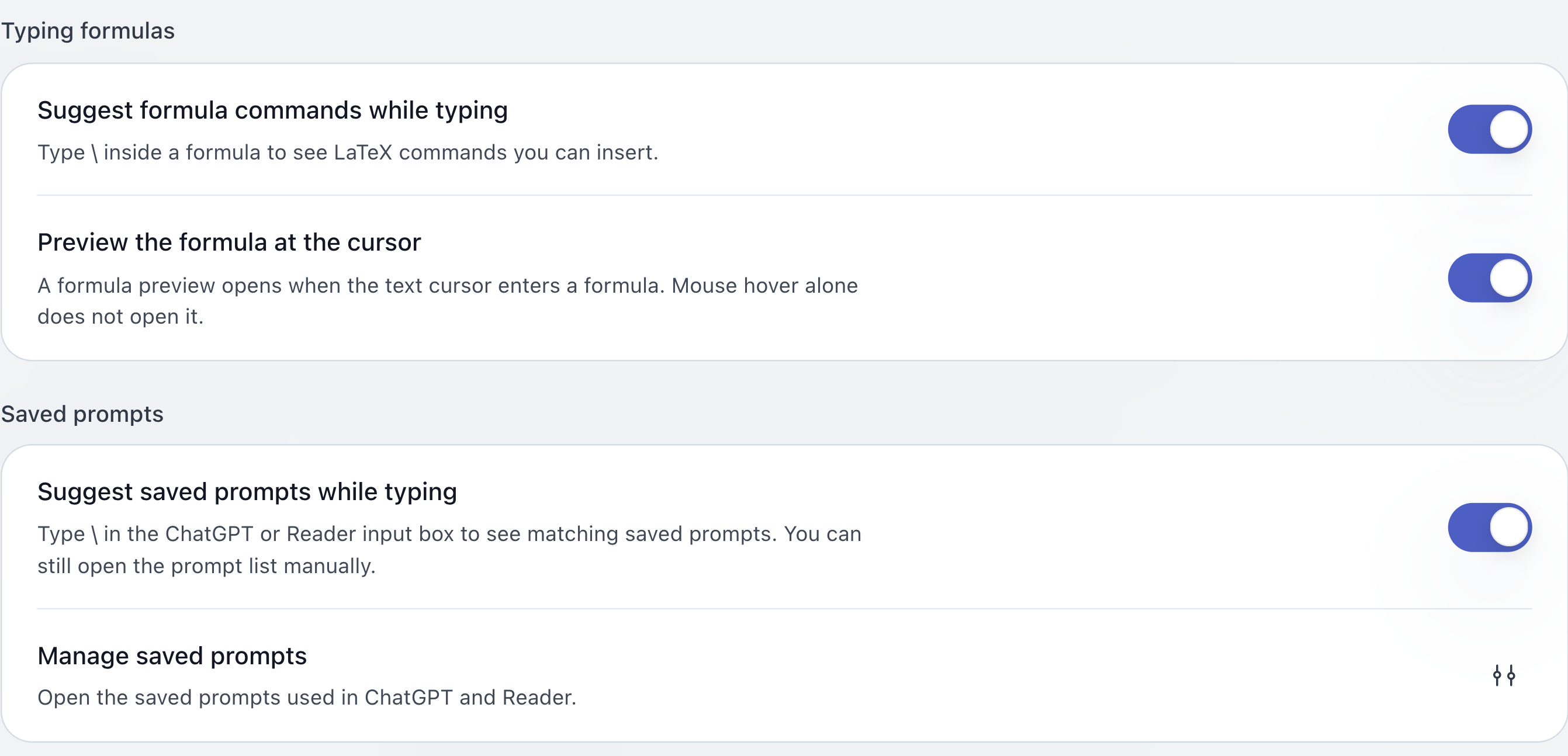
| Suggest formula commands while typing | On | On, Off | With input enhancement enabled, type a backslash \ inside a formula to see LaTeX commands. |
| Preview the formula at the cursor | On | On, Off | With input enhancement enabled, placing the text cursor inside an inline or display formula opens its preview. Mouse hover alone does not open it. |
| Syntax and shortcuts | Help action | Open instructions | Explains bold, lists, formulas, and assistance shortcuts without changing preferences. |
| Suggest saved prompts while typing | On | On, Off | Type \ outside a formula in ChatGPT or Reader to match saved prompts. This is independent of the input enhancement master switch. The prompt list remains available manually when off. |
| Manage saved prompts | Management action | Open prompt list | Manages the shared prompts used in ChatGPT and Reader. Its contents depend on what you have saved. |
For formula suggestions, Up/Down chooses a candidate, Enter/Tab accepts it, and Esc dismisses it. Preview image actions are configured separately under Buttons → Formula buttons → Preview while entering formulas. See Input enhancement and prompts .
Highlights & annotations
| Setting | Default | Options or range | Effect and requirements |
|---|---|---|---|
| Show annotations on ChatGPT replies | On | On, Off | Shows saved annotation marks and allows new page annotations. Turning it off does not delete saved annotations or disable annotations inside Reader. |
Configure selection Copy, Annotate, and highlight colors under Buttons → Selection buttons. Whether new annotations survive a refresh is controlled by Save new annotations for later inside Reader; this preference also applies to ChatGPT page annotations. Highlight persistence is independent of that annotation switch. See Highlights and annotations .
Copy & export
| Setting | Default | Options or range | Effect and requirements |
|---|---|---|---|
| Click a formula to copy its source | On | On, Off | Clicking a reply formula copies editable source. This is independent of formula image button visibility. |
| Format when clicking one formula | $...$ / $$...$$ | Five formula formats listed below | Only changes copying by clicking one reply formula. Requires click-to-copy to be enabled. |
| Formula format when copying Markdown | $...$ / $$...$$ | Five formula formats listed below | Changes formula output in Reader, selections, bookmarks, and Markdown exports, without changing page rendering. |
| Text size in a single-formula image | 36 px | 16–72 px, in 1 px steps | Used when copying or saving one formula as PNG/SVG. Does not change reply text or full-message images. |
| Message PNG width | Desktop, 800 px | Mobile 390 px, Tablet 640 px, Desktop 800 px, Custom | Sets the layout width for a full-message PNG, independently of single-formula images. |
| Message PNG width → Custom width | 800 px | 360–1,200 px, in 20 px steps | Editable and used only after choosing Custom. |
| Message PNG resolution | 1× | 1×–3×, in 0.5× steps | Sets raster scale. Very long images may use a lower effective scale so export can finish. |
Both formula format menus offer $...$ / $$...$$, \(...\) / \[...\], Raw LaTeX, LaTeX equation, and LaTeX equation*. The last two wrap display math in the corresponding environment; inline formulas still use \(...\), and formulas in tables use inline formatting. See Formula actions
for formats and Export
for message output.
Buttons
This category controls which buttons appear and which stay visible when their group is collapsed. Showing a button does not enable its underlying feature: showing the Input enhancement entry, for example, does not turn input enhancement on. Previews show the layout; their copy and export actions do not execute.
Page buttons
All five buttons below are shown by default, with none kept visible when collapsed. Each has a Keep visible control. Turning a button off preserves that preference so it returns when the button is enabled again.
| Setting | Default | Options or range | Effect and requirements |
|---|---|---|---|
| Bookmark current page | Shown, not kept visible | Show/Hide, Keep visible/Unpin | Shows the page entry for bookmarking the current ChatGPT conversation. |
| Open separate Reader | Shown, not kept visible | Show/Hide, Keep visible/Unpin | Opens this conversation in Reader in a separate browser tab. |
| Prompts | Shown, not kept visible | Show/Hide, Keep visible/Unpin | Opens the shared saved prompt list. |
| Input enhancement | Shown, not kept visible | Show/Hide, Keep visible/Unpin | Opens quick settings for input enhancement. |
| Refresh message navigation | Shown, not kept visible | Show/Hide, Keep visible/Unpin | Reloads the page and rebuilds message navigation. It is not a switch to preload the entire conversation history. |
The AI-MarkDone brand / settings entry is separate from these five hideable buttons.
Message buttons
| Setting | Default | Options or range | Effect and requirements |
|---|---|---|---|
| Show reply action buttons | On | On, Off | Master visibility switch for the action bar below replies. |
| Bookmark | Shown, not kept visible | Show/Hide, Keep visible/Unpin | Saves or removes a message bookmark. Requires the reply action bar. |
| Copy Markdown | Shown, not kept visible | Show/Hide, Keep visible/Unpin | Copies the current reply. The next two additional actions depend on this button. |
| Copy as PNG | On | On, Off | Shows the additional action to copy the full reply as PNG. Requires Copy Markdown. |
| Copy question + reply | On | On, Off | Shows the additional action to include the corresponding question. Requires Copy Markdown. |
| Reader | Shown, not kept visible | Show/Hide, Keep visible/Unpin | Opens Reader from this reply. Requires the reply action bar. |
| Export | Shown, not kept visible | Show/Hide, Keep visible/Unpin | Shows the message export entry. Requires the reply action bar. |
| Message time | On | On, Off | Controls message time visibility. Available information depends on the current message data. |
| Show character count | On | On, Off | Displays reply character counts, rather than English word counts. |
Only the four primary message buttons—Bookmark, Copy Markdown, Reader, and Export—can be kept visible when collapsed. None are kept visible by default. Copy as PNG and Copy question + reply are additional actions without separate pin controls.
Formula buttons
Choose In replies or Preview while entering formulas first. They store independent preferences. The preview example can switch between an inline formula, a display formula, and completion; choosing an example does not change your saved feature preferences.
| Setting | In replies default | Preview while entering formulas default | Effect and requirements |
|---|---|---|---|
| Show Copy PNG button | Off | On | Copies the formula image to the clipboard, subject to browser write support. |
| Show Copy SVG button | Off | On | Copies the formula as SVG, subject to the current browser’s capabilities. |
| Show Copy MathML button | Off | On | Copies the formula’s MathML representation. |
| Show Save PNG button | Off | On | Downloads a PNG of one formula. |
| Show Save SVG button | Off | On | Downloads an SVG of one formula. |
Reply formula actions appear on hover. Input previews additionally require Enable input enhancement and Preview the formula at the cursor, plus a formula that can be previewed. Turning previews off preserves action preferences. Single-formula image size is set under Copy & export.
Selection buttons and message directory
| Setting | Default | Options or range | Effect and requirements |
|---|---|---|---|
| Show selection buttons on ChatGPT | On | On, Off | Shows a toolbar after selecting eligible reply text. This master switch only controls the ChatGPT page. |
| Show Copy Markdown button | On | On, Off | Controls selection copying. The preference applies to ChatGPT and Reader. |
| Show Annotate button | On | On, Off | Controls selection annotation in both surfaces. ChatGPT also requires Show annotations on ChatGPT replies. |
| Show the three highlight colors | On | On, Off | Shows blue, yellow, and red highlight actions in ChatGPT and Reader. |
| Show navigation arrows at bottom right | On | On, Off | With the message directory enabled, shows Previous/Next arrows above the brand button. Does not change Left/Right keyboard navigation. |
When the ChatGPT selection master switch is off, its three action preferences become temporarily read-only in Settings. Their saved values still apply to Reader. Selection actions also require recognizable text and message positions.
Data & backup
| Setting or action | Default | Options or range | Effect and requirements |
|---|---|---|---|
| Default order in Library | Title A–Z | Newest first, Oldest first, Title A–Z, Title Z–A | Currently applies to bookmarks. Highlight and annotation lists use updated time and do not follow this setting. |
| Save only bookmark excerpts | Off | On, Off; confirmation when enabling | The interface describes keeping 250 characters from each end when text exceeds 500 characters. The current message-saving entry still stores full questions and replies, so this switch cannot be relied on to shorten new message bookmarks. The preference is passed to bookmark file import and does not retroactively compress saved content. |
| Export settings | Action | Export JSON file | Exports button visibility, pinned buttons, appearance, reading, and export preferences. A scope notice appears before export. |
| Import settings | Action | Select settings JSON, preview, apply by category | Review differences and choose categories before applying. The limit is 128 KiB. Invalid, unknown-format, or newer-version configurations are rejected. |
| Restore previous settings | Available after an import changes settings | Preview and restore | Restores preferences saved before the latest settings import. This is not a factory reset and is unavailable without a recovery record. |
| Local backup → Export all | Action | Download Library JSON | Backs up saved bookmarks, highlights, annotations, and folders, separately from settings files. |
| Google Drive → Sign in to Google Drive | Not connected | Sign in | Connects your Google Drive. This feature is experimental; signing in does not start a backup. |
| Google Drive → Back up now | Available when connected | Manual backup | Uploads a snapshot of saved Library data. There is currently no automatic or scheduled backup switch. |
| Google Drive → Preview restore | Available when connected | Select snapshot, review, restore | Lets you inspect a cloud snapshot before confirming restoration. Opening the page does not automatically synchronize data. |
| Google Drive → Sign out | Available when connected | Disconnect | Disconnects the current backup account. |
| Google Drive backup settings | Action | Test connection, Manage cloud backups | Checks the connection and manages snapshots. Trashing a cloud snapshot does not delete your local Library. |
| Storage used | Read-only information | Current usage | Shows local extension storage usage. Storage capacity cannot be changed here. |
Settings files exclude Library content, conversations, prompts, custom templates, account details, and credentials. Import applies only selected categories and preserves custom templates and saved content. If settings change after the preview, select the file again to review it before applying.
Google Drive availability depends on whether the installed build has its sign-in capability configured. Some Firefox builds may show it as unavailable. See Import and export and Google Drive backup for restoration workflows and scope.
Advanced
| Setting or action | Default | Options or range | Effect and requirements |
|---|---|---|---|
| Enable extension on ChatGPT | On | On, Off | Controls AI-MarkDone on ChatGPT. ChatGPT is the current user-facing platform toggle. |
| Use arrow keys to switch messages | On | On, Off | Left/Right switches messages when you are not typing in an input or using an extension modal. While typing, the keys still move the text cursor. |
| Shortcut to copy selected text as Markdown | Cmd/Ctrl + Shift + C | Off (native copy), Cmd/Ctrl + C, Cmd/Ctrl + Shift + C | Applies to selections in ChatGPT replies. Partial code selections copy the selected text; selecting part of a formula copies the whole formula. |
| Step size when finding unloaded messages | 3,000 px | 1,000–5,000 px, slider steps of 400 px | Distance for each attempt to find a message not yet displayed. It does not guarantee loading all history at once; usually keep the default. |
| Conversation reading status | Read-only information | View status, Copy diagnostics | Helps investigate missing directory, Reader, or export content. Pages without diagnostic support show it as unavailable. Copied diagnostics describe reading status, not full message bodies. |
Settings inside Reader
Open Reader and click its top-right settings button. These options are grouped under Reading display, Annotations and prompts, and Other inside Reader, rather than the eight global Settings categories.
| Setting or action | Default | Options or range | Effect and requirements |
|---|---|---|---|
| How Reader opens | Full screen | Full screen, Window | Chooses how the in-page Reader opens. Window is centered inside ChatGPT; it does not mean a separate browser tab. |
| Reader font size | 16 px | 12–22 px, in 1 px steps | Changes Reader body text, with headings and code scaled proportionally. |
| Reader content width | 1,000 px | 480–1,600 px, in 20 px steps | Sets maximum body width. Content still shrinks to fit the current panel. |
| Syntax highlighting for code | On | On, Off | Adds syntax colors to existing code blocks. Turning it off still shows the code. Global Content to keep controls whether code blocks are included. |
| Show the heading outline in Reader | On | On, Off | Lists headings along Reader’s right side when recognizable headings are available. |
| Save new annotations for later | Off | On, Off | On keeps new annotations after refresh; Off keeps new annotations only for the current page session. Previously saved annotations remain available. Enabling it does not automatically save earlier temporary annotations. Also applies to ChatGPT page annotations. |
| Place the prompt after copied annotations | Off | On, Off | By default, the selected prompt precedes annotations. On places it after the annotation list. |
| Annotation order | Sort by creation time | Sort by creation time, Sort by text position | Controls both annotation list order and copied annotation order. |
| Manage saved prompts | Management action | Open shared prompt list | Manages the same prompts as the entry under global Writing & prompts. |
| Annotation copy format | Built-in template | Edit text, insert selected text/annotation placeholders, Preview, Restore default | Defines how selected text and annotations are combined. The built-in template wraps both parts in English instructions and tags. Custom templates are excluded from Export settings. |
| Separate Reader notice | Shown on first opening | Reset notice | Shows the usage notice again the next time you open a separate Reader from the page buttons. |
Save new annotations for later is also available in the annotation manager; both controls share the same preference. Window mode supports dragging and resizing and remembers its size. Its initial width is approximately 72% of the viewport and height 82%; body width remains limited by the maximum above.
See Reader for step-by-step instructions and Annotations to learn how to save, copy, and restore annotations.