AI-MARKDONE / MANUAL
Export messages and offline files
Select ChatGPT messages and export Markdown, an offline ZIP with attachments, PDF, or PNG, with options for charts and long content.
On this page
Open Export from a reply toolbar or directory preview to save selected questions and replies locally. Text, code, formulas, and charts have different output needs. Choose a format and check the selected messages before saving.
Select the messages to save
- Expand the toolbar below the target reply and choose Export, or use Export in its directory preview.
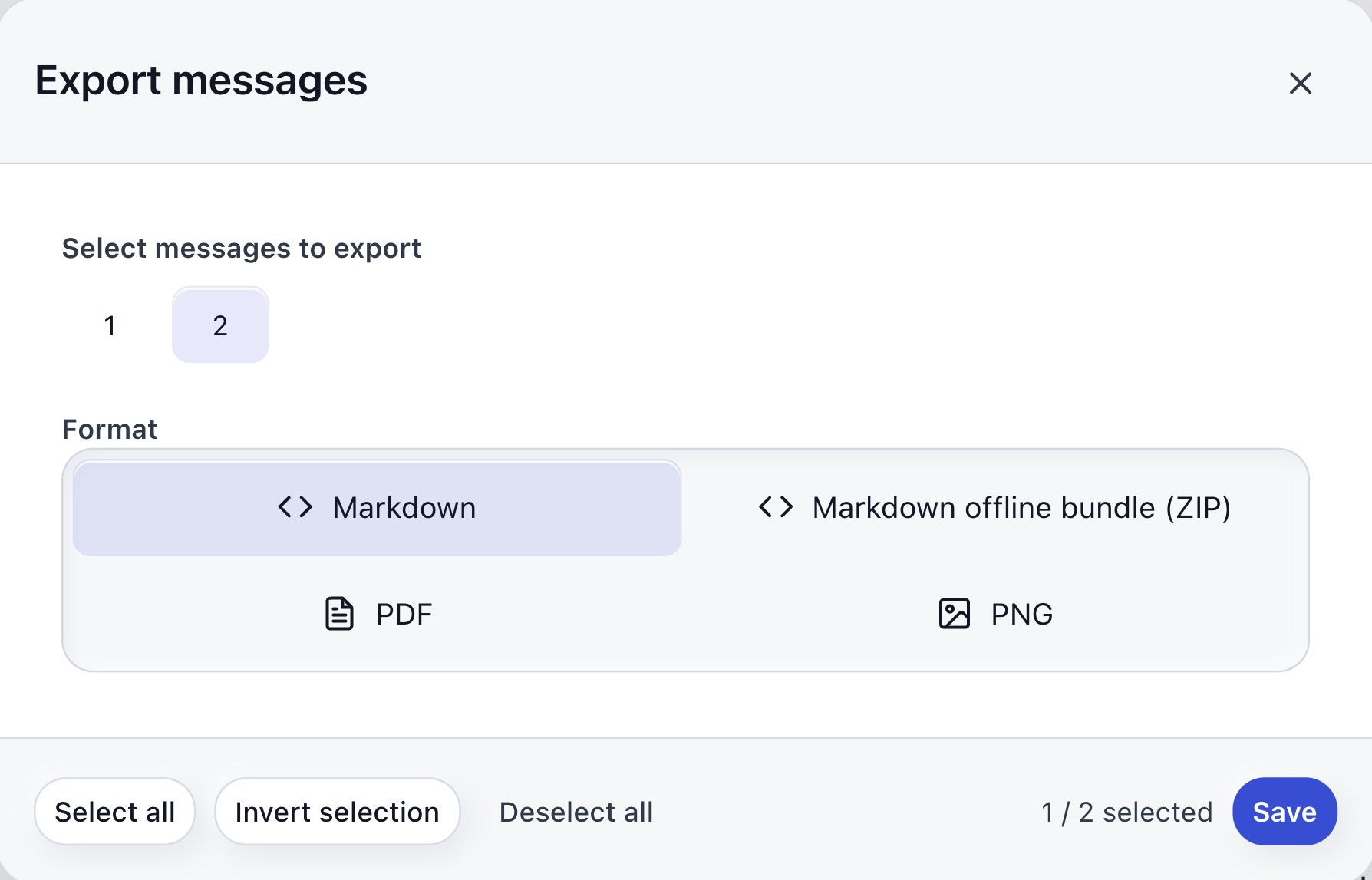
- The dialog initially selects the current reply’s entry. It does not automatically select the whole conversation.
- Click numbered entries to add or remove them. Use Select all, Invert selection, or Deselect all for batch selection.
- Check the selected count, choose a format, and click Save.
The file follows the original conversation order and includes the selected entries’ available questions and replies. The numbers represent messages currently obtained by the extension, not a guarantee that every earlier message has loaded. If replies are missing, load more history in ChatGPT, then reopen Export and check the selection. See Message navigation .
Choose a format
| Format | What you receive | When to use it |
|---|---|---|
| Markdown | A .md file with editable text, code, and formula source. | Further editing, note-taking, or version control. |
| Markdown offline bundle (ZIP) | conversation.md and supported image attachments in one ZIP. | Keeping supported charts and cards alongside the text. |
| A document in the browser’s print dialog. Choose Save as PDF there. | Reading, archiving, or sharing a fixed-layout document. | |
| PNG | One image, or a ZIP when the output needs multiple image files. | Sharing long images or placing content in presentations. |
PNG packaging depends on the number of output images, not simply the number of selected messages. One very long reply may need several images, while several short replies may fit in one.
Keep charts, cards, and other rich content
Ordinary Markdown copy and .md export preserve readable labels, explanations, or available data for supported charts and cards. They do not turn every interactive component into executable code.
Choose Markdown offline bundle (ZIP) when you need supported visual attachments. Extract the archive and open conversation.md. Keep its relative location to the assets folder; moving only the Markdown file can break image references.
For PDF and PNG, Charts and rich content appears only when selected messages contain relevant rich blocks:
- Include images attempts to preserve static visuals.
- Use text placeholders substitutes readable descriptions.
Content that has not loaded, cannot be accessed, exceeds processing limits, or is not supported may use a text explanation. The completion message reports how many images were included and which content needed placeholders. Offline files do not retain chart interactions, buttons, or features requiring the website. Not every ordinary remote image is guaranteed to work offline either.
Adjust content and image size
- Settings → Reading & messages → Content to keep controls reply links and code blocks. By default, link destinations are removed and code blocks retained. These options also apply to whole-message Markdown copy and Reader.
- Settings → Copy & export controls formula formatting in Markdown output.
- Settings → Copy & export → Message PNG images controls width presets, custom width, and pixel ratio. For oversized or difficult exports, reduce the width or ratio, or select fewer messages.
You can inspect progress or choose Cancel while processing. PDF preparation eventually opens the browser’s own print dialog; save or cancel there once it opens.
Copy only the current reply as an image
Hover over Copy Markdown in the reply toolbar and choose Copy as PNG above it. This processes the current reply without opening the batch-selection dialog.
If one image is generated, AI-MarkDone attempts to write it to the clipboard. An ordinary clipboard-write failure may fall back to downloading the image. If the browser explicitly lacks image-clipboard support, an error is shown; use Export → PNG instead. Multiple generated images are downloaded as a ZIP rather than copied as one image.
Open saved files and inspect formulas, tables, code, and chart explanations. Keep a Markdown copy as well if you need an editable version.