AI-MARKDONE / MANUAL
Write formulas in the input box
Use LaTeX suggestions, caret-based formula previews, formula exports, and newline, bold, and list assistance in ChatGPT input.
On this page
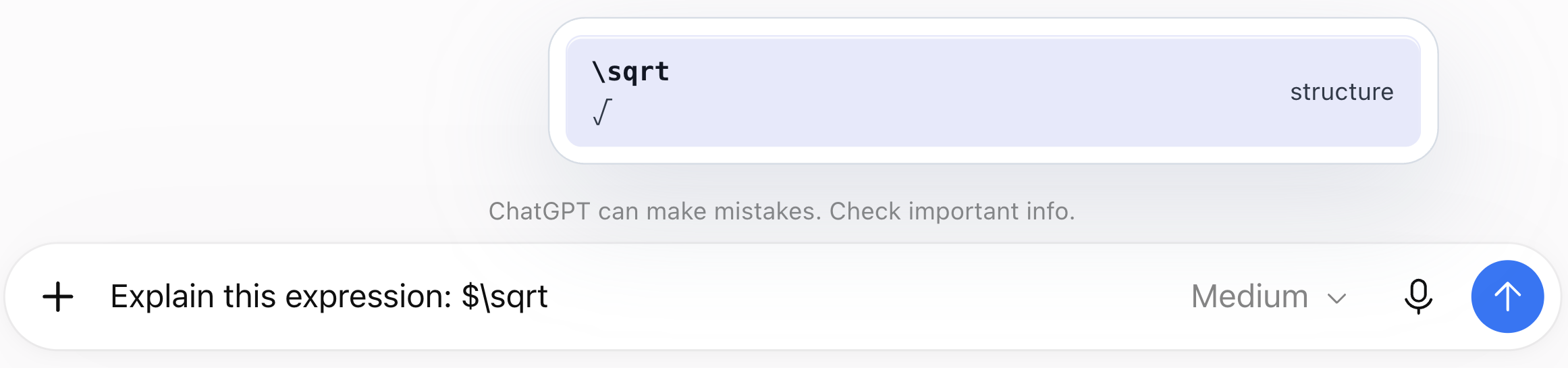
Write Markdown and LaTeX directly in ChatGPT’s existing input box. AI-MarkDone can suggest commands and preview formulas while you type, so you do not have to send a formula to ChatGPT just to check its appearance.
Enable input enhancement
- Open the AI-MarkDone management panel and go to Settings → Writing & prompts → Input enhancement.
- Turn on Enable input enhancement.
- Enable Suggest formula commands while typing and Preview the formula at the cursor as needed.
- Return to the ChatGPT input box and start editing.
The Input enhancement action in the lower-right page drawer also opens these options. If that entry is hidden, use Settings. Hiding the entry and turning off input enhancement are separate actions.
Enter and preview a formula
Try a simple inline formula:
$E=mc^2$
Or use a display formula:
$$
\frac{a+b}{c}
$$
Place the text cursor inside the formula, or move into it with the keyboard. The preview updates as you edit. A cursor at the closing delimiter can also trigger it. Moving the mouse over the text without moving the caret does not open an input formula preview.
You can preview a formula while it is being written, before finishing the message. Unclosed brackets, missing arguments, or unsupported commands may temporarily prevent rendering; complete the expression and check again. Empty formulas and formulas exceeding approximately 4,000 source characters do not show this preview. A text selection is not treated as the formula at a collapsed cursor.
Insert a LaTeX command
- Inside
$...$or$$...$$, type a backslash and a command prefix, such as\fra. - Choose a suggestion with Up / Down, or click it.
- Press Tab or unmodified Enter to insert the selected snippet.
- If the snippet contains fields to fill in, use Tab to move forward and Shift + Tab to move back.
- Press Esc to dismiss the suggestions. Further editing can trigger them again.
While suggestions are open, ordinary Enter accepts the formula snippet rather than sending the message. Outside formulas, \trigger may open your saved prompts instead. Prompt autocomplete and LaTeX completion are separate features.
Copy or save from the preview
Once rendering finishes, use Copy PNG / SVG / MathML or Save PNG / SVG. These actions process only the current formula and do not send the message in your input box.
All five input-preview actions are enabled by default, with settings separate from the hover actions on reply formulas. Adjust them under the input-formula preview options in Settings → Buttons. The text size for a single-formula image is under Settings → Copy & export.
After an edit, export actions for the previous preview are temporarily unavailable. Wait for the new preview before exporting. SVG clipboard support and MathML pasting depend on the browser and destination application; saving SVG or PNG provides a file-based alternative. See Formula copy and export .
Newlines, bold, and lists
These input-enhancement options can also be controlled separately:
| Action | Condition and result |
|---|---|
| Enter inserts a new line | When enabled, ordinary Enter adds a newline. Send with the button or Cmd/Ctrl + Enter. |
| Cmd/Ctrl + B | With the bold shortcut enabled, adds or removes visible ** markers around the selection. |
| Enter in a list | With list assistance enabled, continues a numbered or bulleted list. An empty item can end the list. |
| Backspace at a list boundary | Removes or outdents the marker according to the cursor position; another deletion can join the preceding line. |
| Shift + Enter | Preserves ChatGPT’s original behavior. |
| Cmd/Ctrl + Enter | Sends the current message when input enhancement is enabled. Check the draft first. |
List assistance handles splitting, continuation, and renumbering. Markdown markers remain visible: the input box does not become a visual rich-text editor. When using an input method, finish composing the current word before using formula suggestions or these shortcuts.