AI-MARKDONE / MANUAL
Bookmarks and Library
Save answer snapshots or page links, then search, preview, organize, and manage bookmarks, highlights, and annotations in Library.
On this page
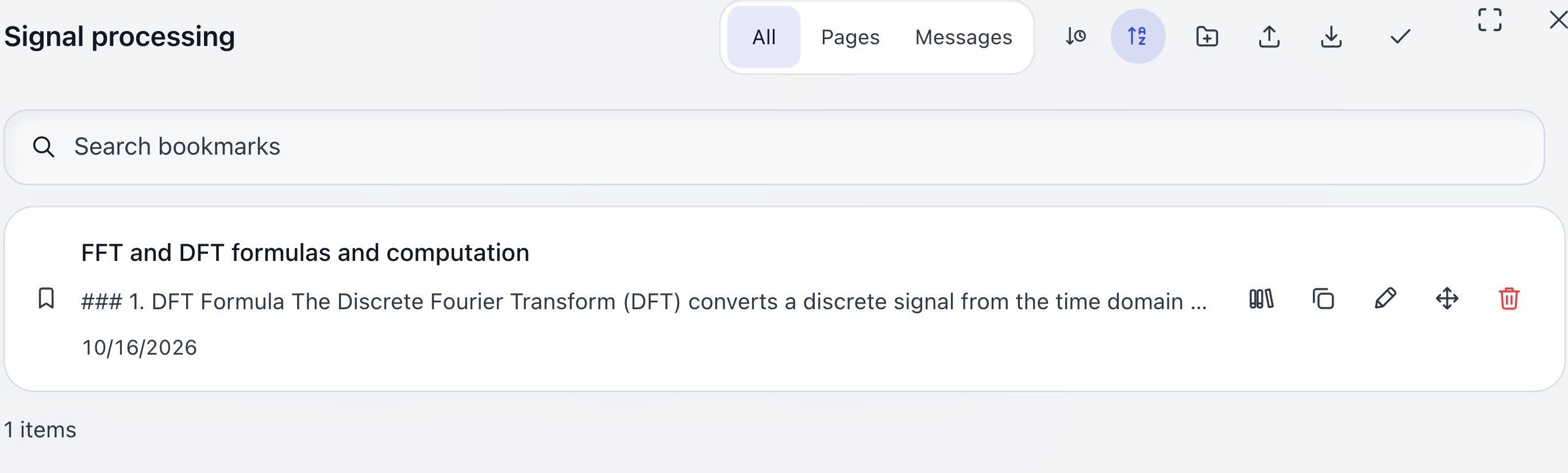
Library brings together bookmarks, highlights, and annotations. There are two kinds of bookmarks: message bookmarks save a snapshot of one answer and its corresponding question; page bookmarks save a page name and URL.
Save an answer
- Wait for ChatGPT to finish the answer and load it on the original page.
- Click the bookmark button in the AI-MarkDone toolbar below the answer, or at the top of Reader.
- Enter a useful title and choose a folder. You can also create a folder while saving.
- Confirm the save.
A message bookmark stores the question and answer captured at that time, together with the source conversation and message position. Later changes to the conversation do not automatically update the saved snapshot. A saved answer shows its bookmarked state; using the corresponding remove-bookmark action deletes that bookmark.
If the bookmark button is unavailable, check that generation has finished and that the corresponding question and answer are loaded. Without reliable source information or content, the extension does not save the incomplete result as a normal message bookmark.
Save a page link
Choose Bookmark current page in the page controls, enter a name and folder, and save. A page bookmark stores only the link. It does not store the conversation’s text and cannot replace a message bookmark or conversation export.
Open Library
On a ChatGPT page, click the AI-MarkDone icon in the browser toolbar to open the management panel, then select Library on the left. You can also open the panel from the AI-MarkDone entry at the lower right of the page and switch to Library.
Library has Bookmarks, Annotations, and Highlights. Choose a type before searching, opening details, or organizing folders.
Find and use bookmarks
| Action | Result |
|---|---|
| Search | Search titles, URLs, and the question and answer text stored in message bookmarks. |
| Filter by type | Show message bookmarks, page bookmarks, or all bookmarks. |
| Sort | Order by name or date. |
| Click a message bookmark title | Preview its saved content in Reader without first finding the original answer. |
| Click a page bookmark title | Open the saved URL. |
| Copy a message bookmark | Copy its stored text for reuse. |
| Open the source conversation | Return to the saved ChatGPT conversation and find the message if the source is still accessible. |
A bookmark preview shows what was saved, not the whole conversation. Older summary records can show only the parts they actually stored. Bookmark previews do not include the conversation Reader’s temporary Excerpt tray.
Folders and batch actions
Create, rename, or move bookmark folders, and move bookmarks between them. Batch selection can cover the current page or current filtered results. You can then move, delete, or export the selected bookmarks.
When deleting a folder, check the confirmation: it includes the contents of that folder. Annotation and highlight folders organize conversations separately from bookmark folders. Their folder assignments are shared between the annotation and highlight views.
In Highlights, inspect the selected source text, change its color, delete it, or recolor several records at once. In Annotations, inspect the quote and comment, copy, edit, or delete a note. See Highlights and Annotations for their specific rules.
Storage and backups
Library data stays in the current browser’s extension storage. Moving to another browser or device, or uninstalling the extension, does not automatically transfer it.
Export selected exports only the selected bookmarks. A full Library backup also includes other persisted records. Follow Local backup and restore before changing environments, or configure Google Drive backup separately for cloud backup.